

Have a question – We are here to help 
Google Chrome is the preferred browser for this event.
- Event emails will arrive from [email protected]
- Swapcard password resets will arrive from [email protected]
The Swapcard Help Desk Chat Box will be open during the following on-site hours. If you have a question outside of these times, please reference the following FAQ’s or email the appropriate contact below.
- Monday, September 15th: 7:30am – 5:00pm PT
- Tuesday, September 16th: 7:30am – 6:30pm PT
- Wednesday, September 17th: 7:30am – 5:00pm PT
Have a specific question?
· Exhibitor Questions: [email protected]
· Registration Questions: [email protected]
· Attendee Questions: [email protected]
What time zone is the event in?
The event is in Pacific Time; however, sessions will display based on the time zone your browser is set to. The time zone you indicated during registration displays for networking purposes.
How do I edit my profile?
There are two ways to access your Information.
- On the upper right-hand corner of your screen, click on the arrow next to your profile picture and select My profile.
- To the right of your attendee information, you can click Edit to change profile information.
- You’ll be redirected to your profile details.
- To hide your visibility click on the Find Connections tab. On the left side, you will see Visibility. Toggle the slide to the left to hide your visibility.
- To edit the information on your profile, simply click on the Edit or Add parts depending on the type of information you want to add or edit.
*Important note: accepting connection and meeting requests will share your entire profile (including email). DO NOT provide information you do not want shared with accepted connections.

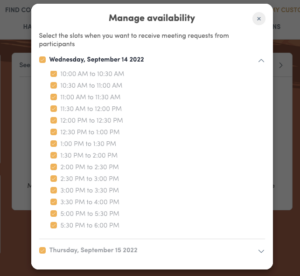
How do I customize my available meeting times?
- Customize your meeting availability in the My Customized Event tab located in the menu bar
- Select My Meetings in the left-hand column.
- Select Manage Availability in the box located on the right.
- The availability defaults to all times. Select your availability for other attendees to request a meeting by removing times your are unavailable. You can also choose to make yourself unavailable all day.
- The Export option on the right allows you to export to your calendar or download a pdf file .
How does the agenda work?
- The Agenda tab displays all the sessions highlighting the day.
- To flag sessions you want to add to your schedule – click on the flag sign logo on the right.
- Once you bookmark a session it will be added to your schedule located on the left.
- Refine your search by using filters located on the left of the screen.
- Added calendar items can be exported by clicking on Export to my calendar.
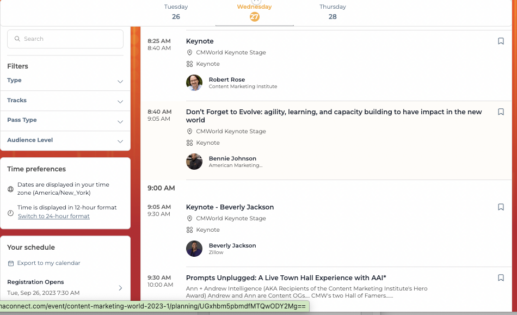
How does the agenda search work?
- With the Agenda tab highlighted in the navigation bar you can use the search box to search for session titles.
- The sessions will list out by days.
- Be sure take note of the highlighted day in the event navigation row
- To bookmark sessions – click on the flag sign logo.
- Once you bookmark a session it will be added to your schedule located on the left side.
How do I network?
- Click Find Connections from the home dashboard or in the menu bar located at the top of the page.
- It’s a great way to network and schedule “face-to-face” or virtual meetings.
- Want to connect? Send a connection request.
- Within each attendee’s profile click Send a Connection Request.
- Tip: Write a brief message before sending your connection request to introduce yourself and explain the reason for the connection. People enjoy a personal greeting!
- Want to know who you connected with during Content Marketing World?
- Click My Customized Event from the menu bar. In the menu on the left, select My Networking and choose the esport option from the menu on the right.